

PSSOPP
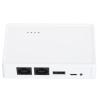
Pssopp 480Mbps Print Server, USB 2.0 Wireless Printer Server with LAN Bridge, MultiUser Support and Easy Setup for Home Office
£106.22
£177.03
-
 Order within to get between
 -
 Tracked Shipping on All Orders
-
 14-Day Returns
- Secure Payments
-
 24/7 Customer Support
Description
- [High Speed Printing]Experience efficient printing with 480Mbps print server allowing multiple users to share a single printer seamlessly.
- [Easy Setup]No external drivers needed, simply download the printer driver online for quick installation and access.
- [Automatic Queue Printing]Supports efficient queue printing, ideal for busy home or office environments with multiple users.
- [Portable Design]Compact and lightweight, easy to place anywhere in your home, office, or educational setup.
- [User-Friendly Management]Enjoy simple page access and management via your mobile device, compatible with various printer .
1. For Multi Users: Print server transforms your USB printer into a wireless printer, so as long as it is on the same network, no matter where the computer is, you can easily access and use the printer. In addition, with the help of a USB A hub, this USB print server supports connecting 4 printers, which greatly improves the efficiency of printing files and is suitable for multiple people.
2. Various Operation Modes: Wireless printer adapter supports wired mode, 2.4G wireless network mode and standalone mode, converts your USB printers to wifi printers in different ways to meet your needs for using wireless printers on varied places. Note: In standalone mode, you do not need to connect the superior router, but theres no access to the Network at the same time.
3. Web Management: Get rid of hassled driver installation and complicated setting steps, enjoy one stop printer and print server configuration on the web interface with USB wireless print server. Note: This print server does not require an external driver, but you need to download and install the printer driver from its official website and follow the Quick Start Guide to connect the printer to the computer.
4. Wide Compatibility: Compatible with 7/8/10/11/, for OS X. Equipped with a USB2.0 port, the wifi print server is for almost all usb printers, including ink jet printers, receipt printers, stylus printers, barcode printers.
5. Widely Use: Small in size and light in weight, you can place it anywhere. The high speed 480Mbps usb2.0 port and 100Mbps bridge or lan ports on the USB print server allow you to print out in seconds, also support automatic queue printing, which is ideal for applications at home, small office, supermarket, educational institutions etc. that require shared printers.
Specification:
Item Type: USB Wireless Print Server
Material: ABS
Color: White
Output Interface: Bridge (10/100Mbps)
Input Interface: LAN (10/100Mbps)
Power Port: Micro USB
USB Port: USB 2.0
Preparation:
1. Make sure that the printer driver is installed on your computer and that it can print properly. (The simplest way to verify the installation of the driver is to directly connect the computer to the printer and check if it can print correctly, which is the prerequisite for the printer server to work properly).
2. Connect the power of the print server, connect the USB print cable of the printer, and connect the network cable of the local area network to the print server. (Connection diagram is on the packaging box).
3. After the print server is powered on for 3 minutes, use your mobile phone to search for a wireless signal with @MG_XXXX. The wireless password is: 77777777 (8 sevens). A webpage window will automatically pop up on your phone, or you can access webpage with a mobile phone.
Setting up on the computer:
After completing the above steps, go to the Control Panel on your computer, Devices, Printers and Scanners, select the printer you want to set up, and click on Manage. (To ensure smoothing setup, make sure that the current computer can print properly by connecting it to the printer via a USB print cable, which confirms that the driver is correct).
1. Select Printer Properties.
2. Click on Port, Add Port, Select Standard TCP/IP Prot, Click on New Port.
3. Enter the IP address of the printer server (in the previous teaching how to view the IP address of the printer server through the mobile phone), click following, and wait for 1 minute.
4. Be sure to select Custom
5. Finished and use
Package List:
1 x USB Print Server
1 x Power Cord
Note:
Common problem handling:
Q: My settings are all normal, but the computer just can't print.
A: Check if the printer is offline, check if the title appears offline in the print queue, if so, uncheck it and it will be able to use the printer again.
Q: My printer can print, but it keeps printing paper continuously.
A: Go to the printer's properties, port, uncheck Enable bidirectional support.
Note: The product does not include a USB adapter for shipment, you need to bring your own DV5V 1A USB adapter.
Shipping and Returns
- We offer tracked shipping on all orders. Tracking information will be shared as soon as the order is dispatched.
- Please check the delivery estimate before adding a product to the cart. This is displayed for every product on the website.
- Available shipping methods and charges will be displayed at the time of checkout, depending on your exact location.
- All customers are entitled to a return window of 14 days, starting from the date of delivery of the product(s).
- Customers are advised to read our return policy for details of the return process, eligibility, refunds as well as cancellations or exchanges.
- In case of any issues or concerns about Shipping or Returns, please contact us and we will be happy to help.
Pssopp.
Pssopp 480Mbps Print Server, USB 2.0 Wireless Printer Ser...
£106.22
£177.03